Requirements

🐘

PHP 8.1+

With pdo_sqlite extension

🗄️

SQLite

Built into PHP — no setup needed

🌐

Web Server

Apache, Nginx, or PHP built-in server

🔒

HTTPS

Required for push notifications & PWA

Download

Get the desktop app or clone the source code.

⬇ Download Desktop App Clone on GitHub

Quick Start (Development)

Clone the repo and start the built-in PHP server. That's it.

Terminal
# Clone the repository
$ git clone https://github.com/repairgenie/lvchat.git
$ cd lvchat

# If you edited any views, rebuild the CSS (only this machine needs Node)
$ npm install && npm run build

# Start the dev server
$ php -S 127.0.0.1:8000 -t public

# Open http://127.0.0.1:8000 in your browser
# Register an account and start chatting!

Production Deployment

Point your web server's document root at public/ and run the deploy script.

Production
# Point your web server (Apache/Nginx) document root at public/

# Run the deploy script
$ bash bin/deploy.sh

# The script will:
#   - Create the SQLite database
#   - Set file permissions
#   - Create the admin account
#   - Output the admin password (shown once!)

# Optional: copy .env.example to .env and configure
$ cp .env.example .env

WebSocket Realtime (Optional)

Enable Level 3 realtime for zero-latency message delivery. Supports up to 50,000+ concurrent users.

WebSocket Setup
# 1. Install PHP CLI extensions (Linux)
$ sudo apt install php-cli
$ php -m | grep -iE 'pcntl|posix'

# 2. Enable WebSocket mode in Admin → Settings → Realtime
#    Or run: config_set('realtime', 'ws')

# 3. Start the gateway daemon
$ php bin/ws-server.php start -d

# The deploy script handles Composer install automatically
# Gateway listens on port 8080 by default (configurable)

Realtime Tiers

  • Level 1 — AJAX Polling (default): 2-second polling, no dependencies, works everywhere
  • Level 2 — SSE: Server-Sent Events for true realtime without WebSocket overhead
  • Level 3 — WebSocket: Workerman gateway for maximum performance and 50,000+ concurrent users

Docker

A Dockerfile is included for containerized deployments.

Docker
# Build the image
$ docker build -t lvchat .

# Run the container
$ docker run -d -p 8080:80 --name lvchat lvchat

# Open http://localhost:8080

What You Get After Install

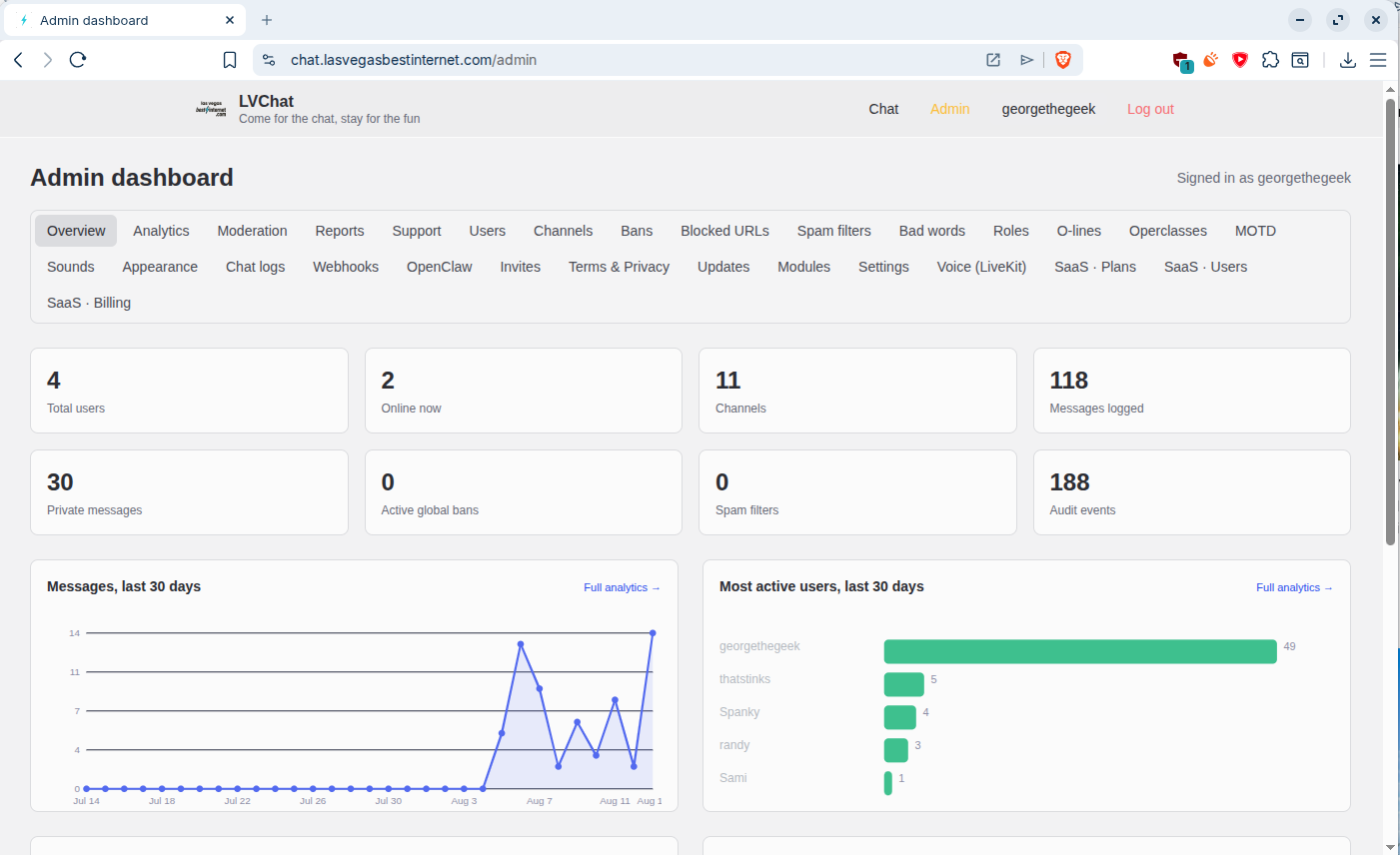
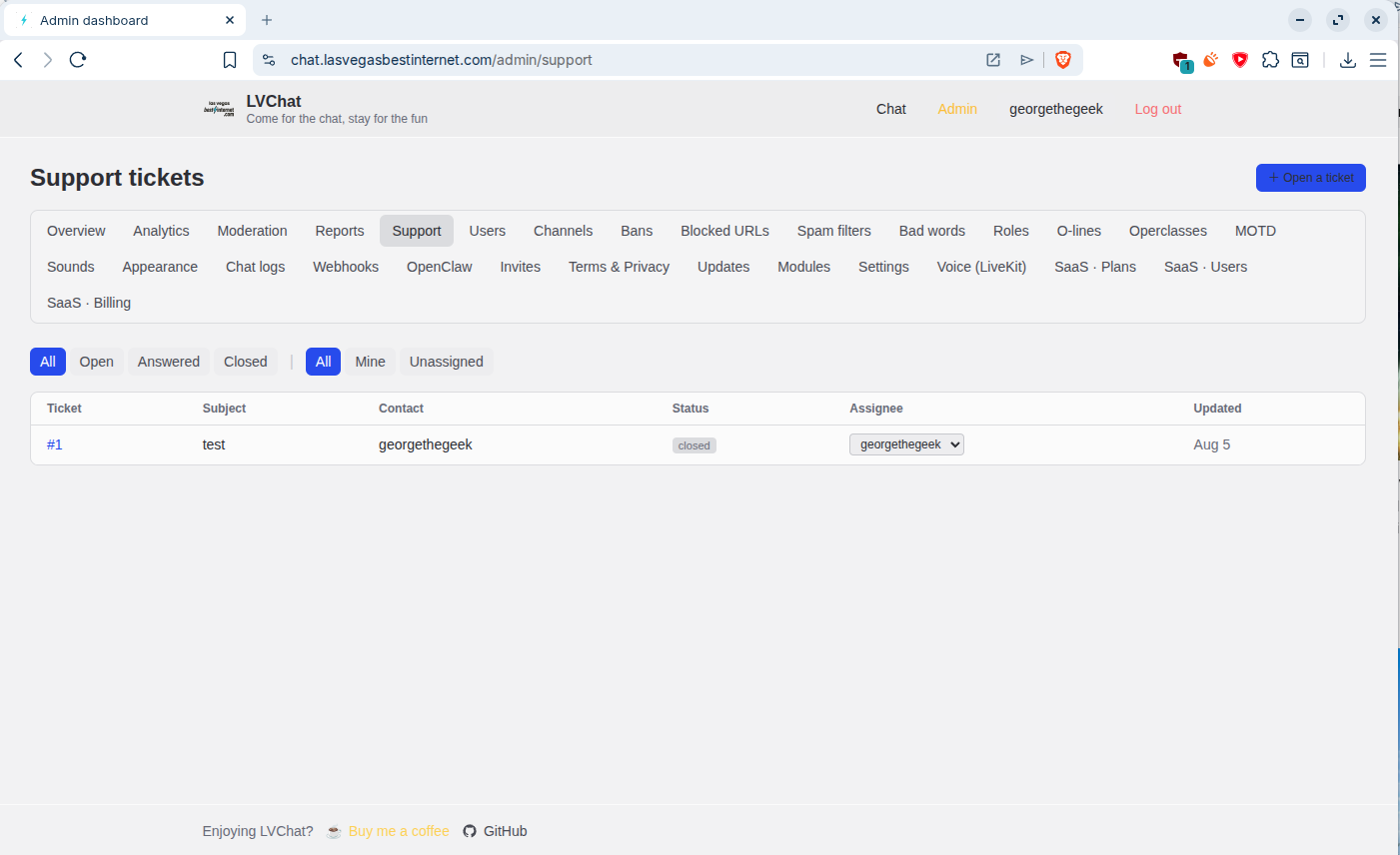
A full admin dashboard, support ticket system, analytics, and more — all from day one.

LVChat Admin dashboard with KPI cards, messages chart, and analytics
LVChat Admin support tickets page

Try a Live Instance

Not ready to install? Try LVChat right now in your browser.

🌐

LVChat Web

chat.lasvegasbestinternet.com →

The full-featured chat app with channels, DMs, voice, themes, and more.

💌

Messenger Web

messenger.lvchat.org →

The IM-first client with buddy list, contact groups, and focused messaging.

After Installation

⚙️

Configure Your Server

Head to Admin → Settings to configure SMTP, realtime mode, registration, and more. Everything is editable from the web UI.

🎨

Set Up Themes

Admin → Appearance lets you set the server-wide theme from 75+ presets, or create custom accent colors and backgrounds.

📱

Install the Desktop App

Download the Electron app for Windows, macOS, or Linux. Multi-profile, OS notifications, auto-updates.